Safe WordPress Updates Without WP-CLI
No SSH, no WP-CLI. How to get the safety of a scripted update with nothing but wp-admin, a control panel and SFTP.

WP-CLI is the nicest way to update WordPress, and on a good share of client sites you will not have it. The cheap plan has no SSH, the client’s host offers a file manager and phpMyAdmin, and that is it. You can still update safely. You just have to replace, one by one, the things WP-CLI was quietly doing for you.
This piece belongs to the series on updating WordPress safely at scale. It assumes you know your way around wp-admin and have SFTP or the file manager in a control panel.
What WP-CLI actually gives you
WP-CLI does not have a better update mechanism. wp plugin update uses the same upgrader classes as the Update button in wp-admin. What differs is everything around it.
- It runs from the command line, where PHP has no execution time limit by default, so a slow unpack is not killed after 30 seconds.
- It is scriptable:
wp plugin update --all --dry-runshows what would change, and the same command behaves the same way on every site. - It makes the previous state easy to get back:
wp db exportbefore,wp plugin install woocommerce --version=9.3.3 --forceafter. - It can check core files against the checksums wordpress.org publishes, with
wp core verify-checksums.
Without a shell you need a substitute for each of those four: time, repeatability, a way back and a way to verify. The rest of this article is how.
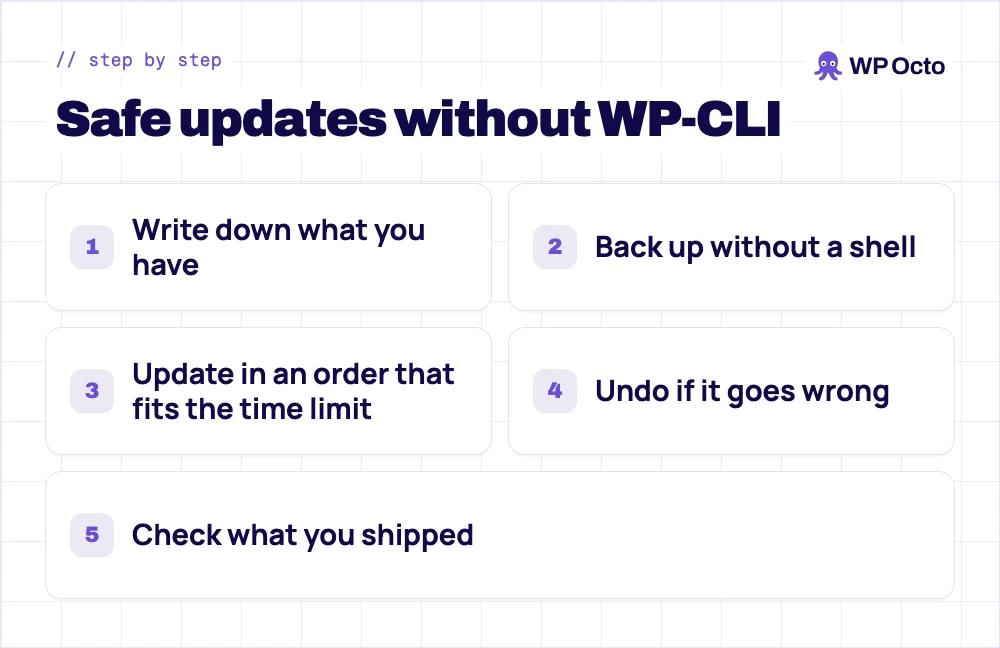
Write down what you have
Before touching anything, record the versions. Tools > Site Health > Info has a button that copies the site info to your clipboard, and the result lists every active and inactive plugin with its version, the theme, the WordPress and PHP versions and the server limits. Paste it into the ticket or your notes. When something breaks next week, that list tells you which update to undo and which version to go back to.
Back up without a shell
If an update goes wrong you need two things back: the files you replaced and the database. Many plugins change tables during an update, and an older plugin version cannot always read the newer schema.
For the database, the Export tab in phpMyAdmin gives you a SQL dump within a minute on a small site. On a larger one it can time out for the same reasons updates do, and a backup plugin that exports in chunks does the job better. For files, the minimum is the plugin folders you are about to update: download them over SFTP or zip them in the file manager. Most control panels also offer an account backup. Check what it covers and how a restore works before you rely on it, because some can only restore the whole account, which takes the database and every other site in that account back in time too.
Whatever you use, get one copy off the server. A backup in wp-content on the same account disappears with the account.
Update in an order that fits the time limit
The Plugins screen updates each plugin in its own background request, so a 30-second limit applies per plugin. The Update Plugins button on Dashboard > Updates runs everything you selected in one request. Without a shell, prefer the Plugins screen, and start with what matters most.
- WordPress core first if a minor release is waiting, because plugins are tested against the current core.
- Then the plugins that change the database or run the business: WooCommerce and its payment gateway, the page builder, the forms plugin. One at a time, with a look at the front end after each.
- Then the rest, in small batches.
- Themes last. Update a child theme’s parent only after checking that it did not change templates the child overrides; WooCommerce lists outdated template overrides under WooCommerce > Status.
WordPress switches on maintenance mode by itself while it replaces an active plugin or core, for the seconds the copy takes. That protects visitors from half-copied files. It does nothing for the minutes after, when a changed checkout is already live. On a busy shop, update at a quiet hour and keep the window short.
Undo without WP-CLI
The fastest way back is the zip of the version you had. For anything from wordpress.org, the plugin’s page has an Advanced View with a dropdown of previous versions. For premium plugins, keep the zip of the version you are replacing yourself; licence portals do not always offer older releases. Upload it through Plugins > Add New Plugin > Upload Plugin. Since WordPress 5.5 that screen recognises an installed plugin and offers to replace the current version with the uploaded one.
If the update took wp-admin down, WordPress’s recovery mode usually helps. Since 5.2 a fatal error sends the site’s admin address an email with a link that opens wp-admin with the faulty plugin paused. If that email never arrives, which is common on hosts with poor mail delivery, rename the plugin’s folder over SFTP, for example to woocommerce.off. WordPress deactivates a plugin whose folder it cannot find, and the site comes back. Then put the old version’s folder in place and give it the original name.
Remember the database. If the new version ran a migration, the old code may not like the new tables, and that is when the export from before the update earns its keep. How to roll back a WordPress plugin update goes through the cases in more detail.
Check what you shipped
WP-CLI users verify core checksums. You get most of the value by looking at the site the way a visitor does. Load the home page, a page built with the page builder, a product and the cart, a contact form. Read the PHP error log in the control panel for fatal errors with today’s time on them. Clear the page cache first, or you are checking yesterday’s HTML. Beyond a handful of sites, a screenshot comparison does this better than your eyes; see how to detect broken layouts after updates.
Doing this on forty sites
All of this works, and it takes time. A careful update on a site without shell access easily takes fifteen to twenty minutes once you count the backup and the checks. On forty sites a month that is the best part of two working days, every month, spent on work that is the same each time.
That is the case for a worker plugin that does the CLI’s job from inside WordPress. WP Octo works that way: it backs up the plugin, theme or core files it is about to replace, puts the site in maintenance mode for the round, compares chosen pages before and after, and rolls a plugin back automatically when it breaks the site, holding that version so it is not installed again. It does this in small steps on shared hosting, without SSH. The features page has the details.