How to Roll Back a WordPress Plugin Update
Putting the old plugin files back takes minutes. Doing it properly means checking the database and stopping the same version from returning.

Rolling back a plugin means putting the previous version’s files back where the new ones are. That part takes minutes. The two things people skip are checking whether the update also changed the database, and making sure the same version does not install itself again tonight. Both are covered below, along with the five practical ways to get the old version back. For the wider process around updates, see how to update WordPress safely at scale.
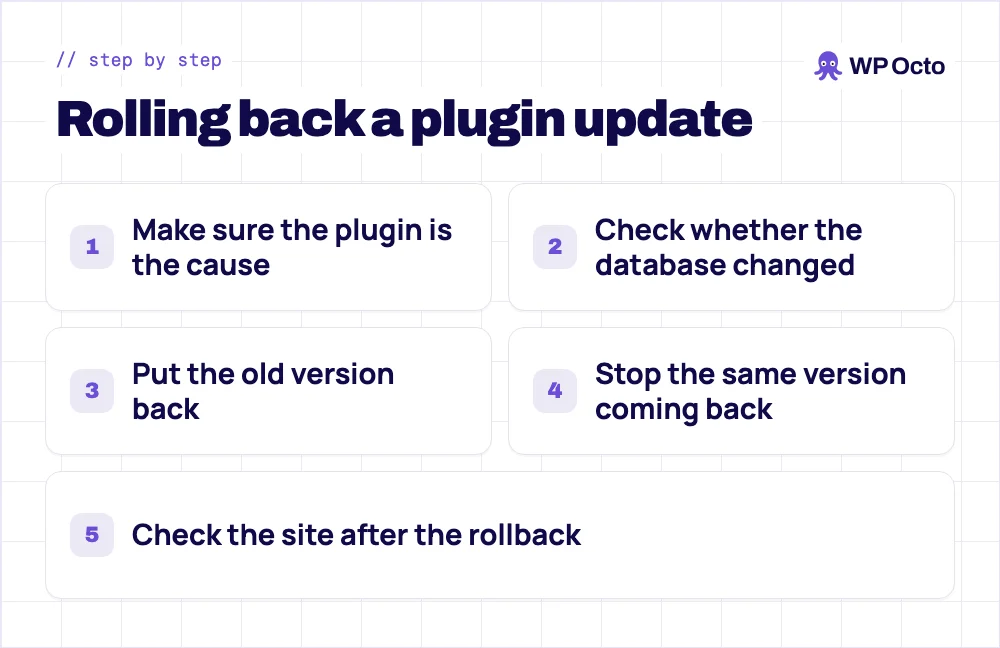
Make sure the plugin is the cause
Before you roll anything back, confirm that this plugin is what broke the site. If several plugins updated in the same round, the one you suspect may be innocent. Read the PHP error log first: a fatal error names the file it happened in, and the path tells you which plugin. If wp-admin still works, deactivate the suspect and see whether the problem goes away. If wp-admin does not work, use the recovery mode link WordPress emails to the administrator after a fatal error, or rename the plugin’s folder in wp-content/plugins over SFTP or the host’s file manager, which deactivates it.
If the problem is a layout or a script rather than a fatal error, compare with a screenshot from before the update and check the browser console. Clear every cache before you blame the plugin; stale combined CSS looks exactly like a broken update. Why WordPress plugin updates fail lists the usual suspects.
Check whether the update changed the database
This is the step that turns a five-minute rollback into a long evening when it is skipped. Many plugins store a schema or data version and migrate their tables after an update. WooCommerce keeps its version in the woocommerce_db_version option; most large plugins have something similar. Read the changelog of the new version for words like “migration”, “database update” or “schema”.
If the database was not touched, rolling back the files is a complete undo. If it was, the old code may not understand the new tables. Then you have three options: restore the database dump you made before the update along with the files, roll back the files and test very carefully, or leave the new version in place and fix forward with the vendor. On a shop, restoring the database means losing the orders placed since the dump, so on a busy shop fixing forward is often the better choice.
Five ways to put the old version back
From your own copy
If you copied the plugin folder before updating, this is the fastest route. Delete or rename the current folder and put the old one back. It is also the only route that gives you exactly the version you had, including any premium version you can no longer download.
Upload the older zip in wp-admin
Download the version you want, then go to Plugins, Add New Plugin, Upload Plugin and choose the zip. Since WordPress 5.5, uploading a plugin that is already installed shows the current and uploaded versions side by side and offers “Replace current with uploaded”. For plugins on wordpress.org, the plugin’s page has an Advanced view with a “Previous versions” selector at the bottom. For premium plugins, look in your account on the vendor’s site; most keep a few older releases.
WP-CLI
If you have SSH, one command does it: wp plugin install contact-form-7 --version=5.9.3 --force. The --force flag overwrites the installed copy. This only works for plugins hosted on wordpress.org, unless you point it at a zip file or URL instead of a slug.
A rollback plugin
WP Rollback adds a rollback link to every plugin from wordpress.org and installs the version you pick. It is convenient for one site. On many sites it is one more plugin to maintain, and it cannot help with premium plugins.
WordPress’s own rollback
WordPress has two rollback features, and neither is a button you can press. Since 6.3, when an update fails during installation, the upgrader restores the copy it set aside in wp-content/upgrade-temp-backup. Since 6.6, when an automatic plugin update causes a fatal error, WordPress detects it with a loopback request, restores the previous version and emails the administrator. Both only act on failures they can see. A manual update that breaks a layout or a checkout is yours to undo.
Stop the same version coming back
A rollback is undone by the next update check if nothing stops it. The transient will list the new version again, and if auto-updates are on for that plugin it will be installed within hours.
- Turn off auto-updates for that plugin on that site, from the Plugins screen.
- If the site is managed in code, return false from the
auto_update_pluginfilter for that plugin’s slug, in a must-use plugin so it survives theme changes. - Write down which version you held back, why, and a date to look again.
- Report the problem to the vendor with the WordPress, PHP and plugin versions, and the error from the log.
Hiding the update entirely, by filtering site_transient_update_plugins to drop the plugin from the list, also works but tends to be forgotten. A plugin nobody sees updates for is a plugin that stays on an old version long after the vendor fixed the bug, and eventually after it fixed a security hole too.
After the rollback
Clear every cache layer, then check the pages and the flow that broke. Look at the error log once more to make sure the old version is not throwing errors of its own against data the new version wrote. Record what you did on the site’s maintenance log, so the next person does not update the plugin straight back.
If you look after many sites, doing this by hand for every bad release gets old fast. WP Octo rolls back a plugin that breaks a site during an update round and then holds that version, and a whole round can be undone with one button. See the features page. For catching the breakage that a rollback should answer, read how to detect broken layouts after updates.