How to Prevent Failed WordPress Backups
Why backups fail on shared hosting (timeouts, memory, missing ZipArchive, disk quota, cron) and how to check and test every backup you rely on.

Most failed backups do not announce themselves. The plugin reports success, or reports nothing at all, and the problem surfaces on the one day you need to restore. Preventing that is half about knowing why backups fail on ordinary hosting, and half about checking every backup instead of trusting a log line.
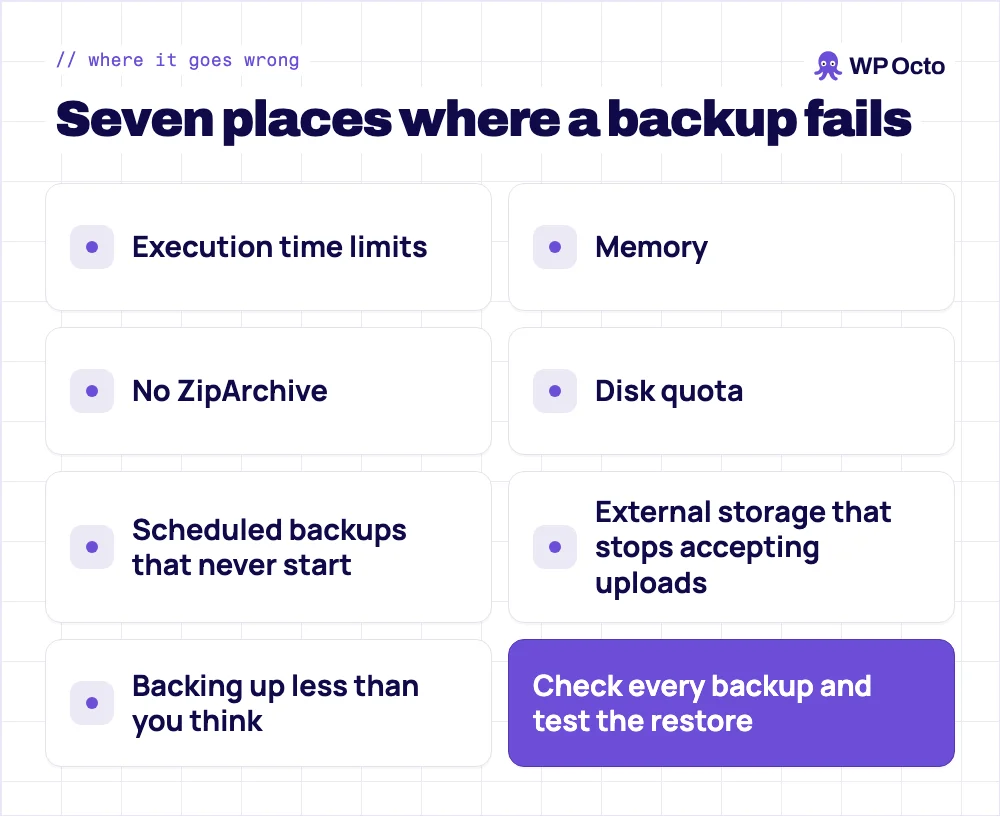
Why backups fail on shared hosting
Take a typical client site: WooCommerce, 4 GB of uploads, a 900 MB database, on a shared plan with a 30-second PHP limit and 128 MB of memory. Almost every backup failure on a site like that comes down to one of the causes below.
Execution time limits
PHP’s max_execution_time is often 30 or 60 seconds on shared plans, and many hosts ignore set_time_limit() or enforce a hard limit in the web server or proxy as well. A backup that tries to pack 4 GB in one request is killed halfway, often without a clean error. What remains is a partial archive with a plausible file size. The fix is a backup that works in small steps, records how far it got, and resumes in the next request. Where the host offers real cron or SSH, running the backup from the command line avoids the web server timeout altogether.
Memory
With a 128 MB limit, anything that holds a large table or a growing archive in memory will fail. Large wp_postmeta or order tables, a log table a plugin never cleans up, or an options table full of autoloaded data are the usual suspects. A database export has to read rows in batches and write them out as it goes. On very large tables, batching by primary key (where id is greater than the last one seen) stays fast, where LIMIT ... OFFSET gets slower with every batch until the step no longer fits in its time budget.
No ZipArchive
Many backup plugins rely on PHP’s zip extension. When it is missing, some fall back to PclZip, which is slower and uses more memory, and some fail outright. You can check in wp-admin under Tools, Site Health, where a missing zip module is listed as a recommended improvement, or with php -m | grep zip if you have a shell. Either ask the host to enable it or use a backup method that does not depend on it.
Disk quota
Backups stored on the same hosting account eat the quota. A 5 GB site with seven daily copies kept locally needs 35 GB, plus free space for the archive being built. When the quota runs out mid-backup, you get a truncated archive, and often more: uploads fail, sessions cannot be written and mail stops arriving. A classic variant is a backup that includes the backup folder itself, so every copy contains all previous ones. Exclude backup and cache folders, keep few local copies, and move the rest off the server.
Scheduled backups that never start
WP-Cron runs on page visits. On a quiet site, or a site with DISABLE_WP_CRON set and no real cron job behind it, the nightly backup simply does not run, and nothing reports an error because nothing happened. A full-page cache in front of the site reduces the visits that reach PHP even further. Set up a real cron job that requests wp-cron.php every few minutes, and alert on a missing backup as well as a failed one.
External storage that quietly stops accepting uploads
An access key that was rotated, a bucket that hit its limit, permissions changed during a clean-up at the storage provider. The local backup completes, the upload fails, and depending on the plugin that ends up as a warning nobody reads. Treat a backup without its external copy as a failed backup.
Backing up less than you think
Some configurations back up only the database, or exclude uploads to save space, or skip tables that do not use the WordPress prefix, which is how a plugin’s custom tables go missing. Check what a backup actually contains at least once per site: database tables, wp-content including uploads, and wp-config.php and .htaccess, which live outside wp-content.
Check every backup, not the log line
A green tick tells you that the process ended. It does not tell you that the result is usable. Verify each backup: is the archive readable, does it have the expected size, do the checksums match, and is the external copy really in storage? Ask the storage, not your own records. And alert on absence: no completed backup in 26 hours for a daily schedule is an alert, whatever the reason.
Retention matters as much as success. If a site was compromised three weeks ago and you keep seven days of backups, every copy you have contains the problem. For most client sites I keep daily backups for at least four weeks, plus monthly ones for longer. Incremental backups, a full copy plus the changes since, make that affordable in storage terms.
Test restores, because that is what a backup is for
An untested backup is a hope. Schedule a restore test, quarterly is a reasonable rhythm, and rotate through your client sites so each gets tested at least once a year. Restore to a staging copy, not over production, and check more than the homepage:
- Log in to wp-admin and open a few recent posts and pages.
- Open a page with images from the last few months, to check that recent uploads came along.
- Submit a contact form, and on a shop place a test order with the payment provider in test mode.
- Check that custom tables are there, for example a booking plugin’s reservations.
- Note how long the whole restore took, from start to a working site.
That last number is the one clients care about when something goes wrong. If a restore takes three hours, say so in the maintenance agreement, not on the day itself. Test the bad case as well at least once: restoring to a new server when the original host is unreachable. That is exactly the scenario where a backup stored only on that host is worth nothing.
What I would set up for every client site
A daily backup at a quiet hour, in small steps that fit within the host’s limits, with a copy in external storage. Verification of every backup against what actually landed in storage, and an alert when one is missing. Four weeks of retention or more. A restore test on a fixed schedule, with the result written down.
WP Octo was built for that kind of hosting: backups run in small steps that fit within 30 seconds and 128 MB, incrementally, from hourly to monthly, and are kept on the site, in external storage or both. You can restore from either copy, stop a backup or restore that is running, and browse the files inside a backup before you restore anything. The details are on the features page.
Backups are the part of security that saves you when everything else failed. The guide to WordPress security monitoring for agencies shows where they fit, and what to do when a WordPress site gets hacked explains why the restore point you choose after a hack is often older than you expect.