What to Do When a WordPress Site Gets Hacked
An ordered response to a hacked client site: contain it, keep the evidence, find the way in, clean up and close the door behind you.
The first hour after you discover a hacked client site decides how bad the next week will be. Most of the extra damage at that point is self-inflicted: restoring a backup over the evidence, deleting files nobody understood, or keeping the client in the dark until there is a complete story. Work in a fixed order. Contain the damage, keep the evidence, find the way in, clean up, close the door, and tell the people who need to know.
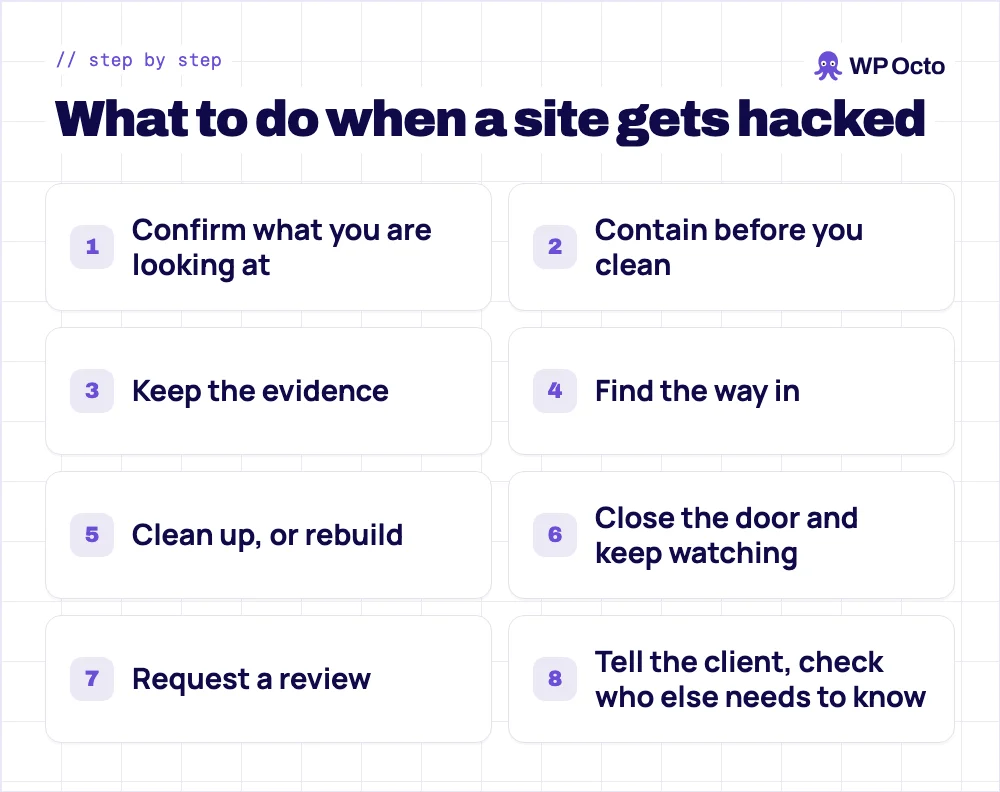
Confirm what you are actually looking at
“Hacked” covers a lot of ground. A spam redirect that only fires for mobile visitors arriving from Google, an administrator account nobody created, a defaced homepage, a host suspending the account for sending spam, a red warning in the browser. Before you touch anything, write down what you saw, when, on which URL and from which device.
Many infections are written to hide from the site owner. They skip logged-in users, known admin IP addresses or visitors without a search engine referrer, so as an administrator you often see a perfectly normal site. Test from a private window, from a phone on mobile data, and with curl using a crawler user agent: curl -sI -A "Googlebot" https://example.com/. A 301 to a pharmacy domain in that output settles the question quickly.
Contain before you clean
Containment means two things: stop the harm to visitors, and stop the attacker coming back while you work.
- If the site serves malware, phishing or spam redirects, take it offline at the web server level, for example a deny rule in
.htaccesswith an exception for your own IP address. A maintenance plugin is weaker here, because injected code often runs before any plugin loads. - Change every password that touches the site: hosting control panel, SFTP, database user and all WordPress administrators. Do it from a machine you trust.
- Replace the keys and salts in
wp-config.phpwith fresh values fromhttps://api.wordpress.org/secret-key/1.1/salt/. That ends every logged-in session, the attacker’s included. - Remove administrator accounts you cannot account for, after noting their username, e-mail address and registration date.
- If other sites live on the same hosting account, treat them as affected until you have checked them. On shared accounts, one site rarely gets infected alone.
Keep the evidence before anything else
Before you clean or restore, take a full copy of the files and a database export exactly as they are now, and download the web server access logs and PHP error logs. Many shared hosts keep only a few days of logs, so this cannot wait until tomorrow. This copy is not for restoring. It is how you find the entry point, and if the client later asks what happened or a breach report is needed, it is the only record you have.
Find the way in
Cleaning without knowing how they got in means you will be cleaning the same site again within a few weeks. On client sites the entry point is usually one of these:
- A plugin or theme with a published vulnerability that was not updated in time. Compare installed versions against WPScan, Patchstack or Wordfence Intelligence.
- A nulled copy of a premium plugin or theme. Those frequently ship with a backdoor from the day they are installed.
- Stolen or reused credentials, such as an administrator with a weak password or an FTP password saved in a compromised client.
- Another site on the same hosting account that was compromised first.
- A deactivated plugin that is still on disk. Deactivated means WordPress does not load it, but its PHP files can often still be requested directly.
The access logs tell you more than any scanner. Look for POST requests to files that should never receive them (PHP files under wp-content/uploads, odd filenames inside a plugin folder), a burst of requests to one plugin’s AJAX action or REST route just before the first modified file, and successful logins from unfamiliar addresses. Then line up timestamps: find . -name "*.php" -mtime -14 lists PHP files changed in the last two weeks. Attackers sometimes fake modification times, so treat this as a lead, not as proof.
Clean up, or rebuild from known-good sources
You can clean the existing install, or rebuild it from known-good sources and keep only the content. When the payload is something I do not fully understand, I rebuild.
- Replace WordPress core with a fresh download of the same version: delete
wp-adminandwp-includes, upload clean copies, and replace the root files exceptwp-config.php. - Reinstall every plugin and theme from its official source instead of trusting the files on disk, and delete the ones the site does not use.
- Read
wp-config.phpline by line. An injected include at the top of the file is a classic. - Search
wp-content/uploadsfor PHP files. Uploads have no reason to contain PHP. Checkwp-content/mu-pluginstoo, because it loads automatically and is easy to miss. - In the database, check
siteurlandhomein the options table, unfamiliar autoloaded options, unknown users, and posts for injected script tags or hidden links. - Check
.htaccessin every directory, including subfolders, and the cron jobs in the hosting panel.
Restoring a backup is a legitimate shortcut, with one catch. It has to be a backup from before the compromise, and that is often well before the first visible symptom, because backdoors are commonly planted weeks before they are used. Restoring last week’s backup can mean restoring the backdoor with it. Compare the backup with the evidence copy: any difference in core, plugin or theme files deserves a look. And update whatever let them in, or the restore buys you very little time.
Close the door and keep watching
Once the site is clean: update everything, remove unused plugins and themes, require two-factor authentication for administrators and shop managers, and disable the file editor with define('DISALLOW_FILE_EDIT', true);. The security checklist for client sites covers the rest of the hardening.
Then watch the site more closely than usual for a month. A reinfection within days almost always means a missed backdoor or an entry point that is still open. Changed-file detection is the most useful signal here: a plugin file that changes without an update is something you want to know about the same day. In WP Octo that check runs next to an activity log and vulnerability checks across all your sites (see the features overview). It helps you catch a reinfection early; it does not replace a thorough cleanup.
Request a review where the site was flagged
If Google flagged the site, request a review in Search Console under Security issues once it is clean, and describe what you removed and fixed. A host that suspended the account wants the same explanation. If the site sent spam, check its IP address and domain on the common blocklists and follow each list’s removal procedure.
Tell the client, and check who else needs to know
Call the client early, with what you know, what you do not know yet, and when you will report back. Clients forgive a hack far more readily than they forgive hearing about it from their own customers.
If the site holds personal data (customer accounts, orders, form submissions) and that data may have been accessed, the GDPR may require a report to the data protection authority within 72 hours of becoming aware of the breach. That duty rests with the controller, which is normally your client. As the processor, you inform the client without undue delay so they can decide. Whatever is decided, write the incident down.
What makes the next incident smaller
The incidents that cost the most hours are rarely the ones with the nastiest malware. They are the ones with no clean backup, no logs, and no list of who has access to the hosting account. Keep an access list per client, keep logs for longer than the host’s default where you can, and make sure your backups actually work. How to prevent failed WordPress backups covers the last point, and the guide to WordPress security monitoring for agencies puts all of this in a routine.